Custom DSL creation
Creating a template for DSL creation
To generate a template, select the create template command from the command menu after opening the Add DSL from Wizard dialog.

Follow the instructions of the wizard and enter a path where the
template should be saved.
The output folder should look like this:
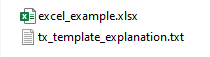
The Excel file contains an example DSL based on Apache Spark.
Additionally to the Excel sheet, a text file named tx_template_explanation.txt will be created. This file includes a short description on how to work with tx files.
Creating a new DSL with the Excel template
With the Excel template, you can define the structure of the DSL. On this page you will be guided on how to create an example DSL. In the end, we will have a fully working example.
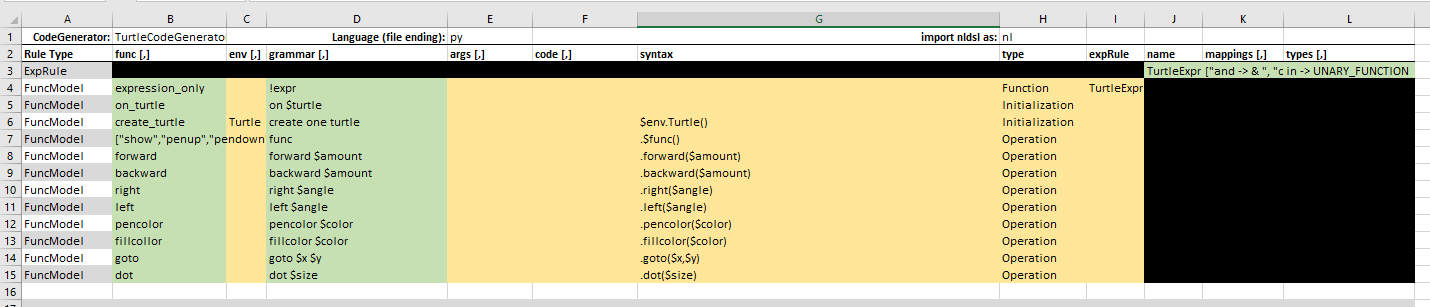
Step 1: Open the Excel template\
Download the empty Excel template from here.
First, you need to open the empty Excel template. You should see the
following:

Step 2: Define the CodeGenerator
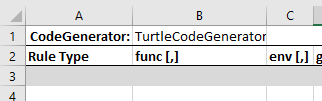
You need to define a name for the CodeGenerator class which will be
created. Typically, this is the name of the DSL. Insert the name in cell B1:
Step 3: Define an expression rule
Next, you need to define an expression rule. To do that, choose the
first empty row. In the column Rule Type, you can select which type of
rule you want to create. In this case, you want to create an expression
rule.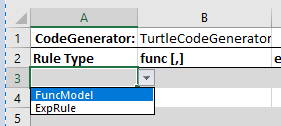
After selecting ExpRule, you can see that some fields got disabled where you don’t have to insert anything. You only have to fill out the cells for the columns name, mappings[,] and types[,]. The [,] part of the column name shows you, that you should enter the values as a comma separated list.
For now, use the values from the following picture:

- name: you can choose this freely, the convention is to use DSLNameExpr
- mappings: [“and -> & “, “or -> | “, “in ->.isin”, “not ->~”]
- types: in -> UNARY_FUNCTION
Step 4: Add expression only rule
Now we need to add a special rule which all DSLs should have.
Select the next empty row and choose FuncModel in the column Rule
Type. After that, look at the column type and the list of available
options.
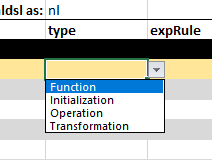
The different types serve different purposes for the creation of a DSL
function:
- Function: Create a function which can be used in the DSL with primitive expressions.
- Initialization: Create a function which can be used to create a new instance of the DSL environment.
- Operation: Create a function which can be used to execute an operation on the DSL environment.
- Transformation: Create a function which can be used to transform (modify) the DSL environment.
The special rule has to be a Function. You can see an example in the following picture.

The field expRule must have the same value as the name of the expression rule defined in step 3.
Step 5: Add initialization rules to the DSL
A DSL can have multiple initialization rules. To add an initialization
rule, choose the next empty row and choose FuncModel in the column
Rule Type. In the type column, choose Initialization.
Now you have to fill out the following fields:
func [,]: internal name of the function
env[,]: if the function needs to operate on a specific environment, you can specify it here. This is often used, when creating a new instance of the DSL environment as you often need to call a function on a specific class.
grammar[,]: the grammar of the DSL which the user has to enter to create the corresponding code. You can use arguments by prefixing them with a dollar sign.
args[,]: definition of the arguments and their possible values.
code[,]: Pure python code that needs to be executed before creating the actual python code, e.g. if you want to implement some kind of logic for specific arguments.
syntax: finally, the code python which will be created. If you need to operate on the environment variable, you can use it with $env.
Note: If you want to use a string in the syntax field, you should use single quotes (
'). In case you really need/want to use a string with double quotes ("), you can use the escape sequence before the double quotes\".
Here you can see an example initialization rule:

Step 6: Add operation/transformation rules to the DSL
A DSL can have multiple operation and transformation rules. To add such
a rule, choose the next empty row and choose FuncModel in the column
Rule Type. In the type column, choose Operation or
Transformation.

You can see an example DSL in the template excel_example.xlsx, which
is generated by the wizard using the feature create template as
mentioned above.
Step 7: Import your DSL
Select the NLDSL menu from the sidebar in vscode and choose Add DSL
from wizard.
In the next step, select create DSL from the command menu.

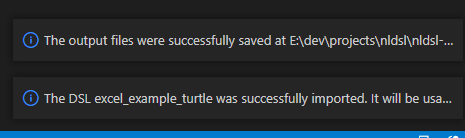
Now follow the wizard and first enter the path to the xlsx or tx file of your DSL definition. After that, specify an output folder in which the DSL you create will be saved. The name of the output folder is the DSL name which will be used internally in the NLDSL extension. Now wait until you get a notification that the created DSL was imported successfully and restart VSCode in order to use the DSL.
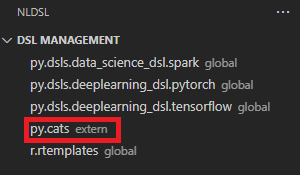
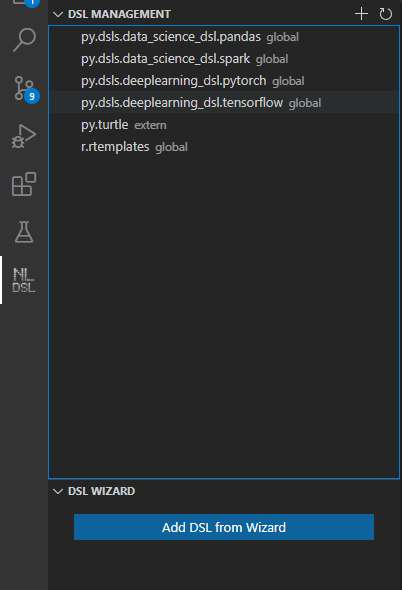
After the restart, you can see that your DSL was imported when you open the NLDSL menu in the side panel. Your newly created DSL should be shown in the list now.
Importing a custom DSL
You can also import an existing DSL (e.g. created by another user) into
the NLDSL extension by clicking the + button in the top right corner
of the NLDSL sidebar. Make sure to follow the instructions of the
wizard.
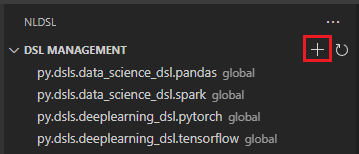
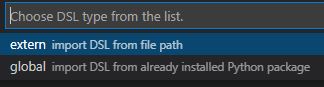
You can choose to import the target DSL as an extern DSL or a global DSL.
Global DSLs are shipped with the extension, extern DSLs are self-created or shared from other users.
Follow the instructions of the wizard and enter the following details:
- The path to the folder of the DSL package (extern DSLs) or the DSL package name (global DSLs)
- The name of the CodeGenerator class
- The file ending of the programming language (e.g. Python - py)
If all the inputs are valid, your list of DSLs should now include the newly added DSL (e.g. cats DSL)